
Key Takeaways:
- AI voice-over generates natural-sounding narration in 130+ languages. You can produce multilingual video content without hiring voice actors.
- Voice cloning replicates the original speaker’s voice in new languages. Your audience hears a familiar voice regardless of the language.
- Processing a 30-minute video takes under an hour. Traditional voice talent sessions for the same scope take days or weeks.
- Cost ranges from $15 to $50 per video versus $500 to $2,000 for traditional voice talent. AI reduces voice-over production costs by over 90%.
Adding professional voice-over to a video in multiple languages traditionally requires hiring voice actors for each language, booking studio time, and managing separate recording sessions. For a 10-minute explainer in five languages, that means five voice actors, five recording sessions, and $2,500 to $10,000 in production costs.
AI voice-over tools automate this entire pipeline. The AI video translation market reached $2.68 billion in 2024 and is growing at 28.7% CAGR, according to Market.us. This guide walks through adding AI voice-over to any video, from tutorial content to corporate presentations.
Types of AI Voice-Over
Before diving into the steps, understand the three main approaches:
- Text-to-speech narration. You provide a script, and the AI generates a voice reading it. Best for new content where no original audio exists: explainer videos, slide presentations, product tours.
- Voice cloning. The AI analyzes the original speaker’s voice and recreates it in another language. Best for maintaining brand identity: CEO messages, instructor-led courses, recurring video series.
- AI dubbing of existing speech. The AI translates and re-voices existing spoken audio. Best for localizing finished videos: webinars, interviews, recorded presentations.
Step 1: Prepare Your Source Material
Start with the best possible input:
- For existing videos: use the highest quality file available (1080p+, clean audio)
- For new narration: prepare a finalized script with clear speaker notes
- Identify all speakers in multi-speaker videos
- Remove or reduce background music during voice segments if possible
Clean source audio is the single biggest factor in output quality. A video recorded with a dedicated microphone in a quiet room produces significantly better results than one captured with a laptop mic in a noisy environment.
Step 2: Choose Voice Settings
Video translation tools like Rask AI’s video translation tool offer voice cloning that preserves the original speaker’s identity across languages. Configure these settings:
- Voice selection. Choose between cloning the original speaker’s voice or selecting from a library of AI voices. Voice cloning works in 30+ languages and captures tone, pitch, and speaking rhythm.
- Emotional tone. Advanced platforms preserve the emotional delivery of the original recording. An enthusiastic product demo stays enthusiastic in every language. A calm instructional tone remains calm.
- Speaking pace. Languages vary in natural speaking speed. Japanese tends to be faster than English. Spanish often runs longer. The AI adjusts pacing to sound natural in each language without cutting content.
Step 3: Select Languages
Choose target languages based on your audience data and business priorities:
- Start with languages where you have the largest non-English audience
- Group languages by region for more efficient review (European languages, Asian languages)
- Consider regional dialects: Brazilian Portuguese vs. European Portuguese, Latin American Spanish vs. Castilian Spanish
- Check platform support for each language, especially for voice cloning availability
Most platforms support 100+ languages for text-to-speech but fewer for voice cloning. Plan your approach based on which languages support your preferred voice method.
Step 4: Generate Voice-Over Tracks
With settings configured, generate the voice-over:
- Process all languages in a single batch for efficiency
- Preview the first two minutes of each language before full processing
- Use segment-level editing to correct specific words or phrases
- Regenerate individual segments rather than the entire video if adjustments are needed
Batch processing saves time. A 15-minute video processed into five languages typically completes in 20 to 40 minutes, compared to days of scheduling and recording with human voice talent.
Step 5: Sync Audio with Video
After generating voice tracks, sync them with the visual content:
- Automatic timing adjustment. The AI matches the new audio to the original video’s pacing, stretching or compressing speech to align with visual cues, scene changes, and on-screen text.
- Lip-sync for on-camera speakers. If the video shows the speaker’s face, enable lip-sync to adjust mouth movements. This prevents the jarring mismatch that makes traditional dubbing feel unnatural.
- Music and sound effect preservation. Background music, transitions, and sound effects from the original video remain intact. Only the voice track changes.
Step 6: Export and Distribute
Export your voice-over content in the format each channel requires:
- Multi-track video. A single video file with selectable audio tracks for each language. Useful for LMS platforms and internal distribution.
- Separate video files. Individual video files per language. Best for YouTube (separate uploads per language improve local SEO) and social media (native upload per platform).
- Audio-only files. Extracted voice-over tracks for podcast distribution or custom video editing workflows.
- Subtitle files. SRT or VTT files paired with audio for accessibility compliance and additional SEO value.
Match the export format to the destination. YouTube and social platforms perform best with separate per-language uploads. Internal tools like LMS or SharePoint work better with multi-track files.
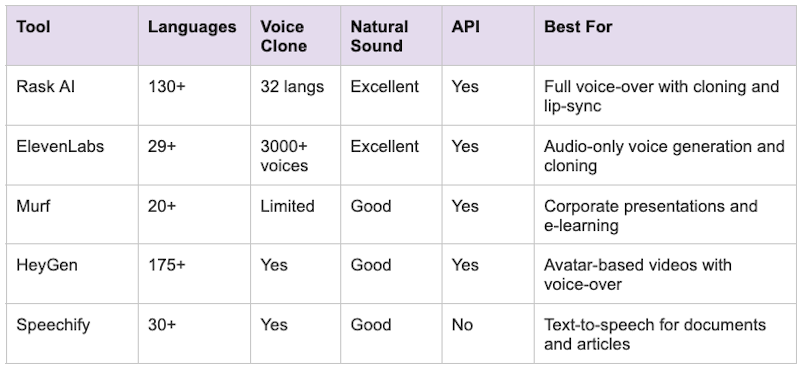
AI Voice-Over Tools Compared
Tips for Natural-Sounding Results
- Use the highest quality source audio. AI voice cloning accuracy improves dramatically with clean, well-recorded source material. Invest in a decent microphone for original recordings.
- Review the first two minutes of each language. If the opening sounds natural, the rest typically follows. Focus your quality check time on introductions and key messaging sections.
- Adjust speaking pace per language. Some languages need more time to express the same idea. Let the AI handle pacing adjustments rather than forcing a one-size-fits-all speed.
- Maintain consistent volume levels. Check that the AI voice-over volume matches the original. Sudden volume shifts between the voice and background elements sound unprofessional.
- Have native speakers spot-check key sections. A five-minute review by a native speaker catches pronunciation quirks and unnatural phrasing that automated checks miss.
Cost Breakdown
Here is what multilingual voice-over costs with traditional talent versus AI tools:
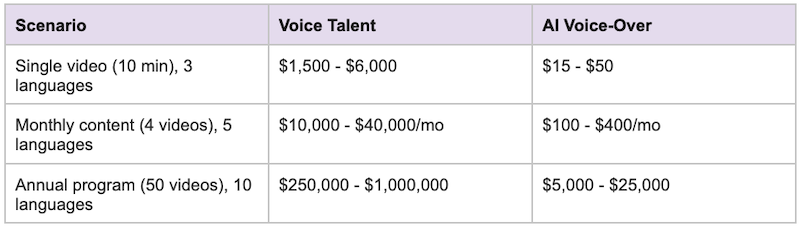
Most AI voice-over platforms offer tiered pricing based on processing minutes. Entry plans start at $29 per month for occasional use. Teams producing weekly content in multiple languages typically need mid-tier plans ($99 to $199 per month). Enterprise plans with API access and priority processing are available for high-volume production.
Getting Started
AI voice-over has democratized multilingual video production. What once required a studio, multiple voice actors, and a production budget now runs on a laptop with an internet connection.
Start small. Pick one video, one target language, and test the full workflow. Listen to the output critically. Refine your settings. Then scale to more languages and more content.
The technology handles the production. Your role is creative direction and quality control. That combination produces multilingual video content that sounds professional, stays on brand, and reaches audiences you could not serve before.
